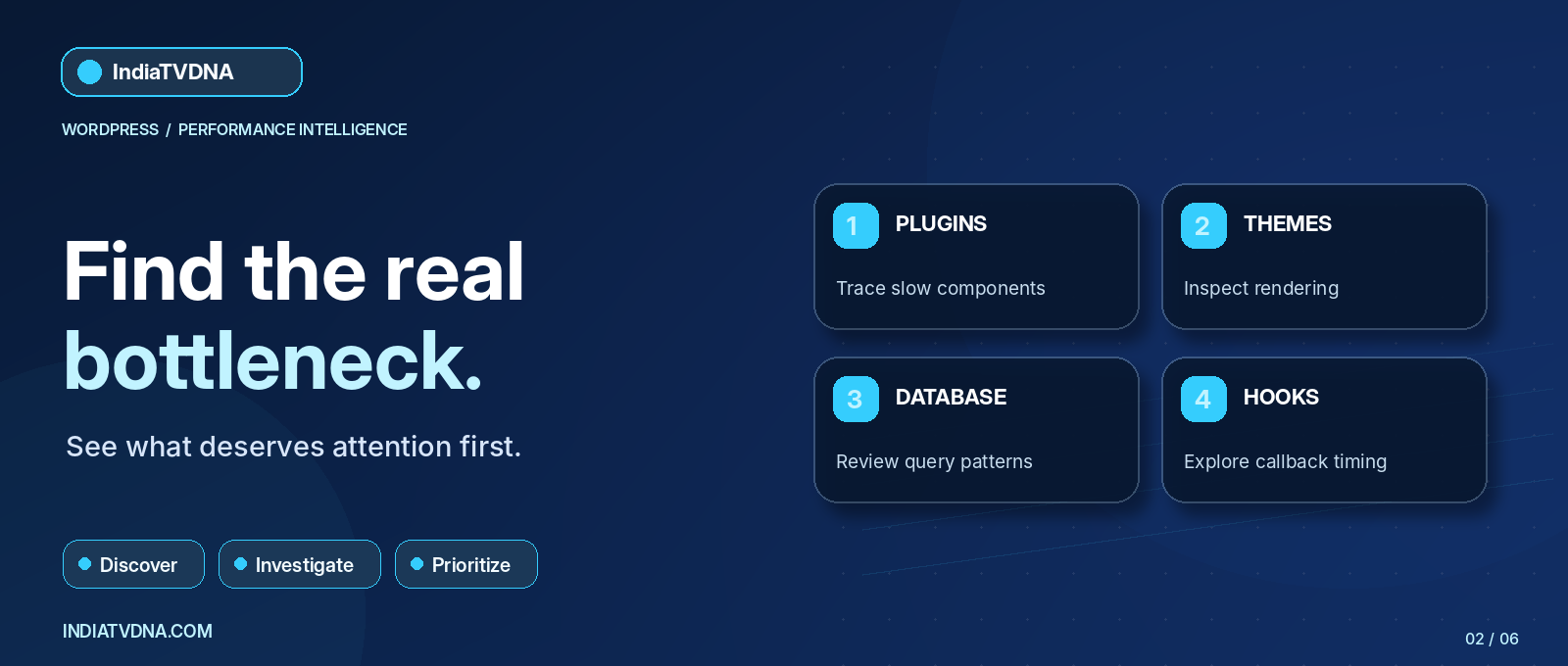
How to Diagnose Slow WordPress Plugins, Themes and Hooks Safely. One slow WordPress plugin can affect a specific page type, but a slow page does not prove that one plugin is guilty. Heavy queries, custom theme callbacks, network dependencies and hosting limits can look similar in a browser. Here is a controlled workflow for investigating slow WordPress plugins, themes and hooks, with IndiaTVDNA Performance Monitor Pro as a source of diagnostic clues rather than unverified one-click fixes.
Identify the exact symptom first
Separate four cases: slow wp-admin, slow anonymous front-end pages, slow logged-in pages and slow individual actions such as add-to-cart or a form submission. Public HTML may be served by cache without running the underlying plugins, while uncached requests exercise PHP and the database. A strong comparison keeps browser, route, request state and cache warm-up consistent.
Why plugin counts are a poor benchmark
Having many small plugins is not automatically slower than having a few complicated ones. Execution time depends on hooks, request types, database calls, external services and loaded assets. A feature-rich but well-designed plugin can add less work than a small extension that runs large queries on every visit. Do not recommend deleting plugins based solely on their count.
Read plugin, theme and hook observations correctly
The product lists slow plugin/theme diagnostics and slow WordPress hook timing. These categories help identify where a request spends time, but not necessarily why. When a hook is slow, check which callbacks were registered and whether the measurement includes database, filesystem or HTTP API operations. Note the request URL and whether the workload is expected. A payment or security action may legitimately perform additional checks.
Make a simple comparison matrix
| Test | What to compare | Reason |
|---|---|---|
| Same public URL twice | Cold vs warm response | Separate cache effects |
| Admin page vs article | Uncached request work | Find admin-only load |
| Product vs post | Database and hooks | Find WooCommerce-specific work |
| Staging with one change | Repeated comparable timings | Validate the suspected component |
Step-by-step isolation without harming visitors
- Make a fresh database and file backup and use a staging clone.
- Record the slow URL, network calls and affected user journey.
- Capture diagnostic results across several comparable requests.
- Shortlist likely components; inspect their update history, settings and active hooks.
- On staging, adjust one nonessential component at a time rather than deactivating everything.
- Test the affected function and important related features after each change.
- Promote only a verified, reversible fix to production and continue monitoring.
A hypothetical example: a slow article template
Imagine that article pages are slow but static landing pages are fast. It may be a theme template query, a recommended-content extension or a block that loads remote data. Measure the article under comparable cache states, inspect relevant hooks and queries, then test each hypothesis on staging. Even when removing a block appears faster, check whether the improvement is repeatable and whether the removed functionality was important to visitors. This example is conceptual, not a live benchmark.
When to involve the hosting team
If every uncached request becomes slow under load, check server CPU, PHP workers, memory, disk latency and database limits. Plugin profiling cannot alone establish that the application is at fault. Ask the host for sanitized time-correlated logs and capacity information. Avoid publishing stack traces or secrets in public support messages.
How Performance Monitor Pro contributes
The IndiaTVDNA Performance Monitor Pro listing includes plugin/theme diagnostics, execution timing and technical reports. Use those views to decide what to investigate next. They do not certify that an individual extension is unsafe or promise that disabling it will improve user experience.
Frequently asked questions
Should I disable all plugins on a live store?
No. Use staging, especially for checkout, payment, security or backup features.
Does a slow hook always identify the guilty plugin?
No. The time can reflect several callbacks and dependent operations.
How many measurements are enough?
Repeat under comparable conditions and investigate variance; one best result is not a reliable conclusion.
Read the complete Performance Monitor Pro series
- IndiaTVDNA Performance Monitor Pro: WordPress Diagnostics & Setup Guide
- WordPress Database Query and WP-Cron Diagnostics: A Practical Workflow
- WordPress TTFB, Cache Health and Core Web Vitals: Troubleshooting Guide
- WooCommerce Slow Checkout and Product Pages: Safe Diagnostics Checklist
Explore IndiaTVDNA Performance Monitor Pro
Official IndiaTVDNA store: 30-day plan · 1-year plan · Lifetime plan. Listed prices and included capabilities must be confirmed on the current product page.
Editorial transparency: Feature details are drawn from IndiaTVDNA’s public product listing. Performance examples are explanatory, not measured results on this website. Some features and integrations require a specific edition, settings, account or add-on. The article does not guarantee PageSpeed scores or search rankings.
[…] How to Diagnose Slow WordPress Plugins, Themes and Hooks Safely […]