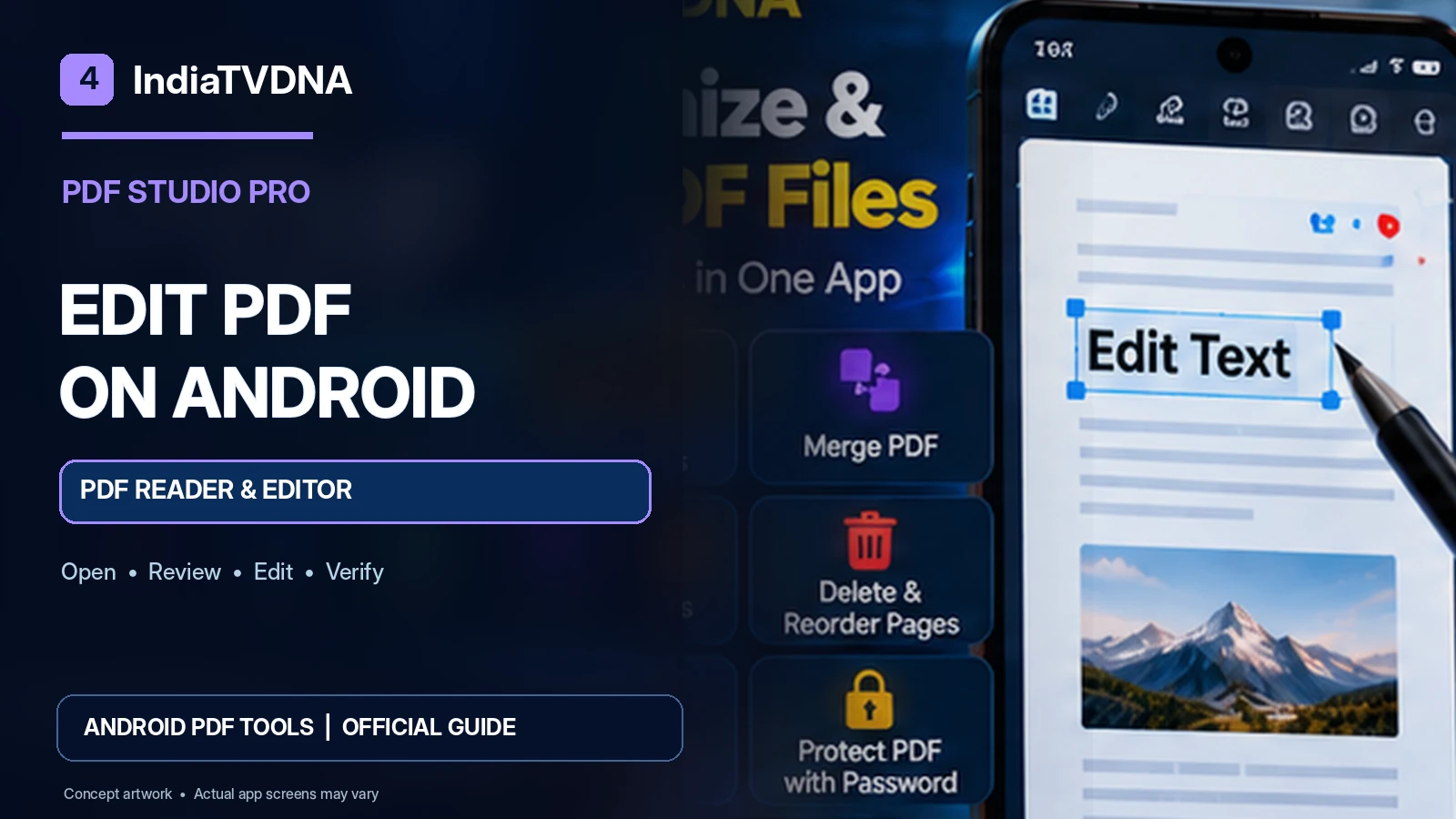
IndiaTVDNA • PDF Studio Pro Android Guide
Editing an existing PDF is more complicated than editing a Word document because PDFs preserve fixed page layouts. PDF Studio Pro offers PDF reading and editing tools on Android, but its official description warns that available editing operations depend on the PDF and its content. Here is a safe workflow that helps avoid missing fonts, shifted content and accidental overwrites.
Before you begin: PDF Studio Pro is described on its official IndiaTVDNA page as currently available to eligible Google Play closed testers; public production availability has not yet been confirmed. Menus and features may differ by build, device and document type.
First identify the type of PDF you have
A typical digital PDF may include actual text objects, embedded fonts, vectors, images, form fields and clickable links. A scan can instead consist almost entirely of photographs of pages. A PDF reader can display both, but editing what appears to be a line of text is not necessarily possible on an image-only scan. Before making changes, try to select a short passage or inspect whether the document contains fields you can interact with.
The safest editing workflow
- Open the PDF and record its current page count and key formatting.
- Duplicate the original outside the editor if it is important or difficult to replace.
- Choose the PDF Studio Pro editing operation that your current version actually supports.
- Apply a small change first and check the page at normal and close zoom.
- Save the result to a new file name rather than overwriting the only original.
- Close the editor, reopen the saved PDF, and compare the changed page with the original.
- Inspect adjacent pages, images, forms and links before sharing.
What can change during PDF editing?
Depending on how the PDF was created, a font might be embedded only as a subset, text characters may be split into objects, or a page may be scanned as an image. Replacing a word can affect wrapping or appearance. Moving an image can alter visual alignment. For official documents, small layout differences may matter, so compare the export against the source before submission. Do not promise pixel-perfect preservation without verifying the particular file.
Use a test document before an important contract
Try editing a sample document with multiple fonts, a table, one image and a hyperlink. After saving, verify that each element still renders properly and that any intended edit is present. Keep an audit trail if your organization requires one. For legal or regulated documents, follow applicable procedures; editing a PDF does not replace authorized signatures, approvals or document-control processes.
Troubleshooting a PDF that will not edit
| Symptom | Possible explanation | Next step |
|---|---|---|
| Text cannot be selected | Image-only scan | Check whether OCR is actually supported |
| Font looks different | Missing or subset font | Test on a copy and compare export |
| Link stopped working | Annotation changed during save | Open the exported link in a viewer |
| File fails to save | Permission, storage or file issue | Save to an accessible location |
The difference between editing, annotating and filling
Editing existing PDF content, adding a note/highlight and filling an interactive form are separate capabilities. A particular application may support some operations on certain files but not others. Avoid assuming that a toolbar label represents unrestricted editing of all PDF structures. Look for the function you actually need in the installed PDF Studio Pro edition and test its exported file.
Handle files and permissions safely
Use the Android document picker where available and grant only permissions needed for the task. Be careful with confidential contracts, IDs and account statements. If your final file is shared to a cloud app or messenger, the recipient service’s own privacy and retention rules may apply. Delete temporary copies only after verifying that you have saved the correct output in the intended location.
PDF editing for students and professionals
A student may need to review lecture notes and make permitted edits to an assignment. An office employee may need to update a non-sensitive template or correct a saved form. A small business owner may review a supplier PDF before forwarding it. In every case, the goal is a valid, readable exported document, not the number of editing buttons in the toolbar.
Frequently asked questions
Can PDF Studio Pro edit all existing PDF text?
The official site says supported editing varies by PDF and document content.
What if my PDF is a photo of paper?
It may not contain editable text; OCR is a separate capability that must be verified in your installed build.
Why save as a new PDF?
It preserves a rollback copy if fonts or layout change.
How do I know the edit worked?
Reopen the exported PDF and compare the actual content and page layout.
Continue learning: PDF Studio Pro guide series
- PDF Studio Pro for Android: Complete PDF Reader, Scanner and Editor Guide
- How to Scan Documents to PDF on Android: Clear Multi-Page Results
- How to Convert Photos to PDF on Android: Images, Assignments and Receipts
- How to Organize, Save and Share PDF Files on Android: Student and Office Workflow
Explore the official PDF Studio Pro app
Learn more about the Android reader, document scanner, Photo to PDF, supported editing and Save & Share workflows on the official IndiaTVDNA PDF Studio Pro page. If you are an eligible closed tester, use the approved Google Play test link supplied through the official program.
Transparency: Features cited in this article come from the public IndiaTVDNA product page. Illustrations are conceptual and do not represent independently verified screenshots, benchmarks or promises of functionality on every file. No conversion-quality, OCR-accuracy or public-release guarantee is claimed.