IndiaTVDNA • PDF Studio Pro Android Guide
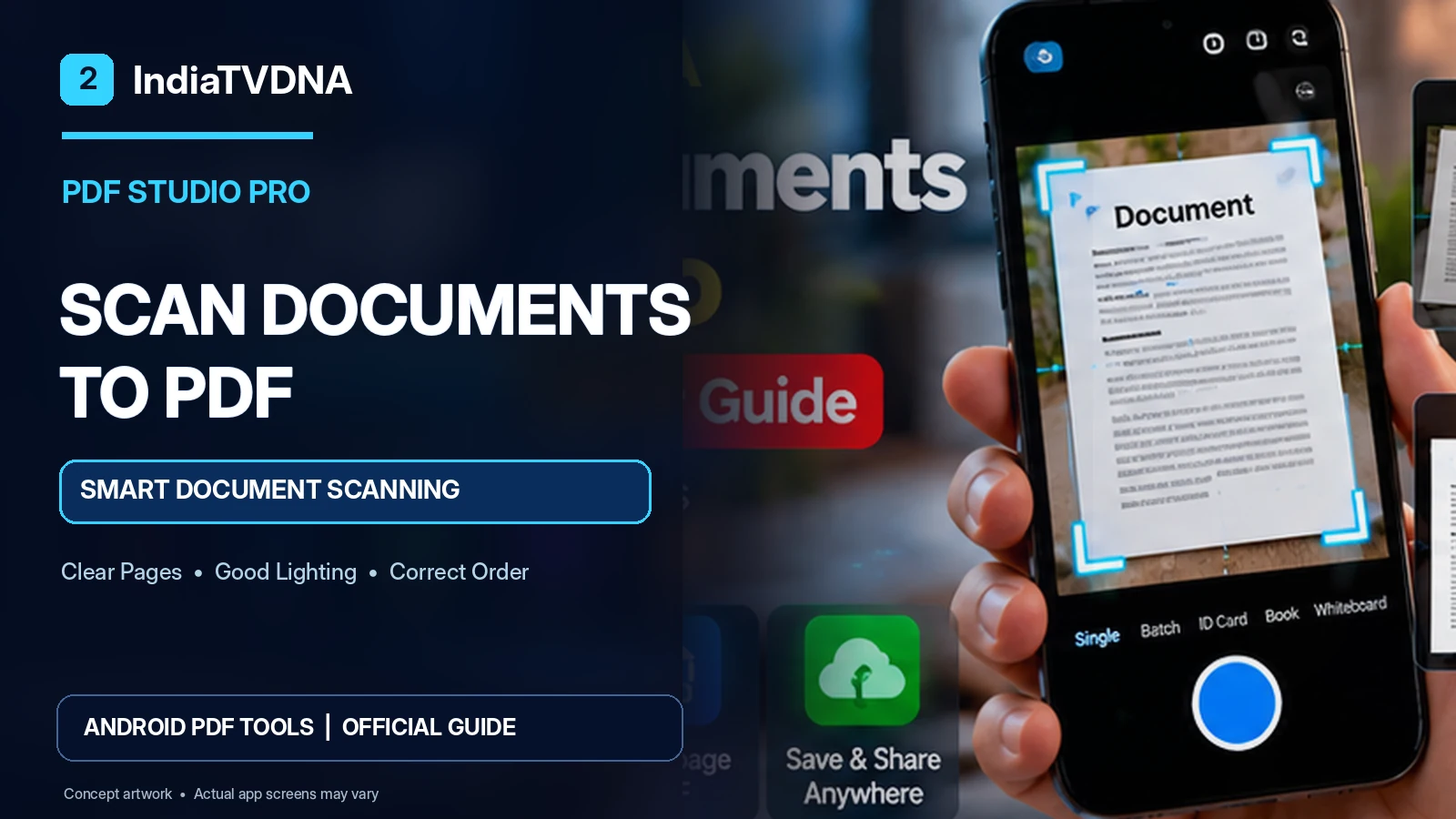
Need to turn a paper document into a shareable PDF using an Android phone? The most important parts of a good scan are lighting, framing, readability and page order. IndiaTVDNA PDF Studio Pro includes a Smart Document Scanner to capture paperwork and save it as a PDF. This guide focuses on a reliable scanning process rather than promising one-tap perfection.
Before you begin: PDF Studio Pro is described on its official IndiaTVDNA page as currently available to eligible Google Play closed testers; public production availability has not yet been confirmed. Menus and features may differ by build, device and document type.
Before you scan: prepare the document
Place paper on a flat, contrasting surface. Smooth out creases and remove objects that cover text. Use even ambient lighting; bright direct reflections on glossy pages can make lettering unreadable. Keep the phone camera steady and sufficiently far from the page so that every corner is visible. If the document has multiple sides or pages, decide the intended sequence in advance.
Step-by-step Android document scan
- Open the supported document-scanning option in PDF Studio Pro.
- Allow camera access only when Android asks for the scan workflow.
- Hold the camera roughly parallel to the paper; do not cut off signatures or date fields.
- Capture a page and inspect whether its text is sharp and the edge selection is correct.
- Adjust cropping or rotation only if the installed scanning tool offers those controls.
- Repeat for each necessary page and verify their order.
- Save the resulting PDF, open the exported file and zoom in on small text to confirm legibility.
- Share a copy only with the intended recipient.
Choose image quality for text, photos and receipts
Ordinary black text on white paper should be clean without deleting punctuation or faint writing. Colored charts, stamps and photographs may need more tonal detail. Be particularly careful with receipts printed on thermal paper because light gray characters may disappear after strong contrast processing. Always compare the enhanced output with the original camera capture before you discard the physical document.
Page cropping and deskewing: what to watch for
Even smart detection can choose the wrong boundary when a page has low contrast or lies near other objects. Check the top and bottom of every page for missing headers, page numbers, signatures or stamped margins. A straightened scan should not stretch tables or change text proportions. If correction tools are missing from your current build, recapture the document with better framing rather than assuming automated correction succeeded.
Multi-page PDF checklist
- All pages are present, with no duplicates or empty frames.
- Front and back sides are included where needed.
- All pages point in the right reading direction.
- The first page is the intended cover or opening page.
- Small text remains readable at normal zoom.
- File size is reasonable for the intended email or form upload.
- The saved PDF reopens on the phone or another PDF reader.
Scanning versus OCR: a necessary distinction
A photo-based PDF can look like a printed page while containing no selectable text. Optical Character Recognition (OCR) is a separate process that attempts to extract characters; its accuracy depends on language, fonts, motion blur and document condition. Do not assume a scan is searchable or accessible just because it looks sharp. If you need text search, test the exported PDF by selecting a word and searching for it. Only advertise OCR if the specific installed app edition actually supports and verifies it.
When a scan looks blurry or too dark
| Problem | Likely cause | Safer action |
|---|---|---|
| Blurred text | Camera moved or missed focus | Retake with steady phone |
| Bright white spots | Glare | Change angle or diffuse light |
| Missing page edges | Frame or crop too tight | Capture the whole sheet again |
| Wrong page order | Sequence not reviewed | Check/recreate in intended order |
Privacy and responsible document sharing
Documents may reveal addresses, identifiers, bank details or signatures. Scan only with authorization, avoid including another person’s confidential pages, and verify recipients before sharing through email or messaging apps. Do not upload sensitive documents to an unfamiliar cloud tool merely to test scanning quality. Review the current PDF Studio Pro privacy page for accurate app and advertising disclosures.
Frequently asked questions
Can I use my Android phone as a document scanner?
Yes. The official PDF Studio Pro page lists a Smart Document Scanner.
Will the scanner guarantee perfect edges?
No. Paper condition, shadows and camera angle can still affect results.
Are scans automatically searchable?
Not necessarily. Searchable text requires suitable text/OCR support and an actual output check.
Can I scan several pages into a single PDF?
Use the supported scan workflow in your installed build and verify the number and sequence of exported pages.
Continue learning: PDF Studio Pro guide series
- PDF Studio Pro for Android: Complete PDF Reader, Scanner and Editor Guide
- How to Convert Photos to PDF on Android: Images, Assignments and Receipts
- How to Edit and Save PDF Files on Android Without Losing Formatting
- How to Organize, Save and Share PDF Files on Android: Student and Office Workflow
Explore the official PDF Studio Pro app
Learn more about the Android reader, document scanner, Photo to PDF, supported editing and Save & Share workflows on the official IndiaTVDNA PDF Studio Pro page. If you are an eligible closed tester, use the approved Google Play test link supplied through the official program.
Transparency: Features cited in this article come from the public IndiaTVDNA product page. Illustrations are conceptual and do not represent independently verified screenshots, benchmarks or promises of functionality on every file. No conversion-quality, OCR-accuracy or public-release guarantee is claimed.