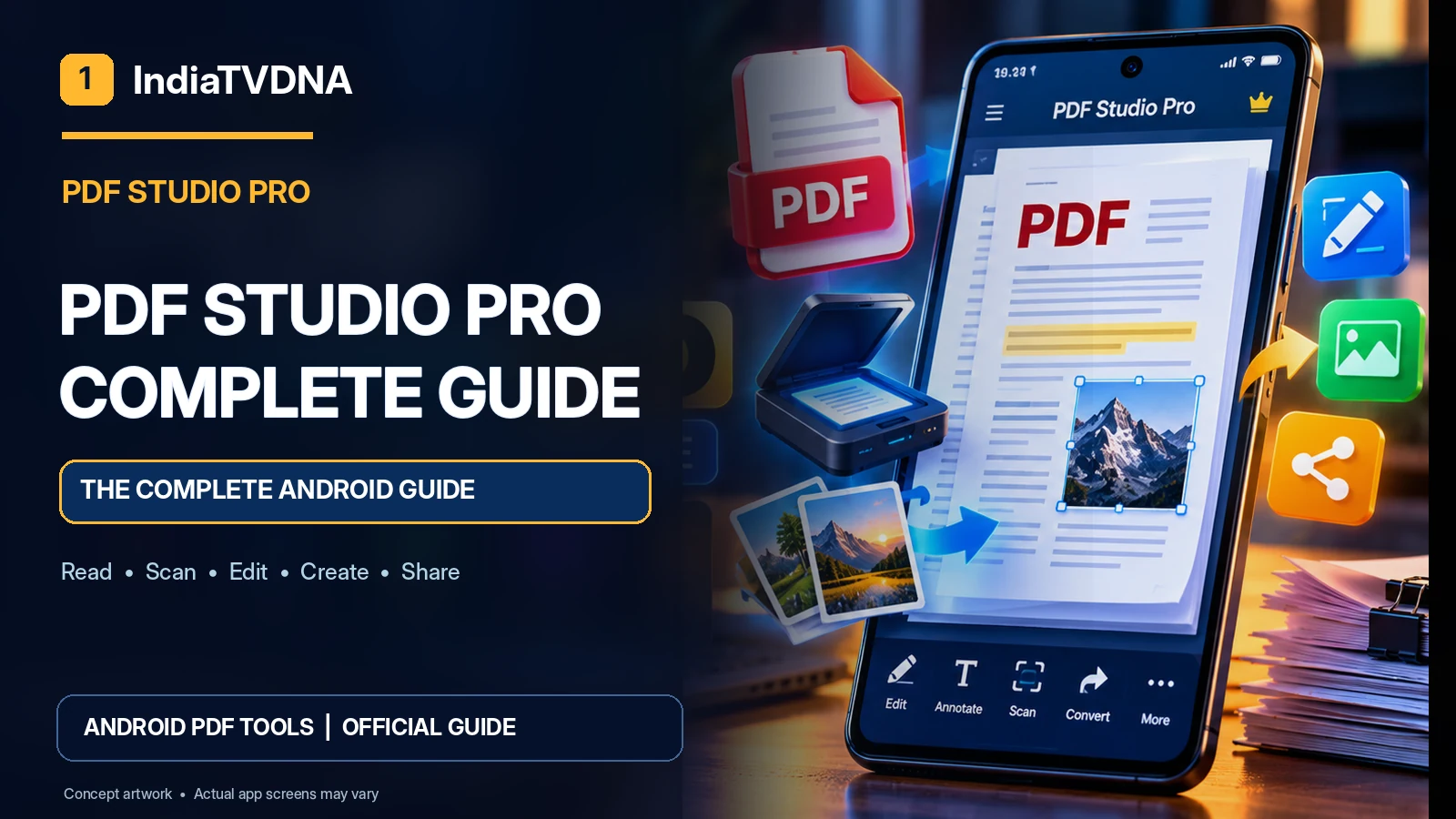
IndiaTVDNA • PDF Studio Pro Android Guide
PDF Studio Pro for Android brings useful everyday PDF workflows together: opening files, scanning paper pages, creating PDFs from photos, editing supported PDF content, and saving or sharing documents. The official IndiaTVDNA PDF Studio Pro page describes these capabilities and identifies the current Google Play release stage as closed testing. This guide explains what each workflow is for, how to approach it safely, and how to tell when a PDF is actually ready to use.
Before you begin: PDF Studio Pro is described on its official IndiaTVDNA page as currently available to eligible Google Play closed testers; public production availability has not yet been confirmed. Menus and features may differ by build, device and document type.
What is PDF Studio Pro?
PDF Studio Pro is an Android document utility aimed at students, professionals, small businesses and anyone who needs to work with PDF documents away from a computer. Its official page lists a PDF reader, supported PDF editing tools, a smart document scanner, Photo to PDF, document creation and Save & Share features. The site also notes that feature previews are promotional artwork and actual app screens may vary. Accordingly, the examples below are workflows to follow, not a claim that every advanced editing or converter feature has passed device testing.
Choose the right starting tool
| Your task | Start with | What to verify |
|---|---|---|
| Read lecture notes | PDF Reader | Text and pages display correctly |
| Digitize paperwork | Smart Document Scanner | Edges, order and legibility |
| Turn photos into a document | Photo to PDF | Correct page orientation |
| Change a supported PDF | PDF Editor | Content remains intact after saving |
| Send a completed file | Save & Share | The recipient can open it |
Step-by-step: your first PDF workflow
- Install an eligible test build through the official testing channel if you have access; public availability has not yet been announced on the official site.
- Open an existing sample PDF or start with a simple document or photo you are allowed to use.
- Review the page count and content before changing anything.
- Choose the relevant supported tool—read, scan, edit or Photo to PDF.
- Save the output with a descriptive file name, ideally leaving the original file unchanged.
- Open the newly saved PDF to check page order, fonts, images and orientation.
- Only then share it through a compatible Android app or service.
How Android PDF editing differs from Word documents
A PDF is primarily a fixed-layout format. Some PDFs contain selectable text and embedded fonts; others are effectively page images captured by a scanner. Editing a paragraph in one PDF can be very different from editing another document. The official IndiaTVDNA page specifically says that available editing operations vary depending on the document and its content. For an important file, try a copy first. Compare the saved file with the original for font substitutions, image movement, broken hyperlinks and accidental page changes.
Document scanning and Photo to PDF are different
Scanning is useful when the source is a paper sheet and the phone camera must capture it. Photo to PDF is useful when the source image is already in the gallery. With either approach, the result should be checked for readable details. A sharp but sideways page is not a finished scan. A multi-page assignment should also retain the intended order. If searchable text or OCR is required, confirm whether your installed version offers it and test the actual output rather than assuming every scan contains selectable words.
A practical workflow for students and office users
Student: photograph your handwritten assignment, create a document, verify every page, then keep a local saved copy before sharing. Office: open a received PDF, review the content, make only supported edits and verify the exported file on a second viewer. Small business: scan receipts or signed papers, use consistent file names and store copies according to your business retention policy. These examples illustrate common use cases and do not claim specific automation features.
Protect personal and sensitive documents
Receipts, identity papers, contracts and financial records can contain sensitive details. Use files you have permission to process, share them only with appropriate recipients and check which Android app or online service receives the document. Local workflows do not automatically prove that no third-party library collects device or diagnostic data; refer to the app’s current privacy policy. Avoid publishing confidential documents in screenshots or feedback reports.
Availability and responsible testing
At the time this article was prepared, the official PDF Studio Pro landing page said the app was available through Google Play for eligible closed testers, with public downloads subject to production approval. If you are not an invited tester, do not rely on an unofficial APK link. Use the official site for the current status and any testing links; features and release readiness can change between builds.
Frequently asked questions
Can I create a PDF from a photo?
Yes. The official product page lists Photo to PDF as an available workflow; verify supported image types in the installed build.
Can I edit every PDF?
No PDF editor can be assumed to edit every element in every file identically. PDF Studio Pro states that supported operations depend on document content.
Is PDF Studio Pro publicly available to everyone?
The official page currently describes Google Play closed testing; check it again for production approval.
Is it safe to overwrite the original PDF?
For important documents, save a separate copy and reopen it before replacing the original.
Continue learning: PDF Studio Pro guide series
- How to Scan Documents to PDF on Android: Clear Multi-Page Results
- How to Convert Photos to PDF on Android: Images, Assignments and Receipts
- How to Edit and Save PDF Files on Android Without Losing Formatting
- How to Organize, Save and Share PDF Files on Android: Student and Office Workflow
Explore the official PDF Studio Pro app
Learn more about the Android reader, document scanner, Photo to PDF, supported editing and Save & Share workflows on the official IndiaTVDNA PDF Studio Pro page. If you are an eligible closed tester, use the approved Google Play test link supplied through the official program.
Transparency: Features cited in this article come from the public IndiaTVDNA product page. Illustrations are conceptual and do not represent independently verified screenshots, benchmarks or promises of functionality on every file. No conversion-quality, OCR-accuracy or public-release guarantee is claimed.